MelonLoader Installation Guide
WARNING
Modding your game manually is not recommended. Unless you know what you're doing, refer to the Mod Manager Guide, instead.
TIP
If you do not know how to find your game path, refer to Locating Your Game.
TIP
If you need help with installation, don't hesitate to ask in the Gorilla Tag Modding Hub Discord!
0. Preface
If you are migrating from BepInEx, you need to delete it from your Gorilla Tag installation. Find your Gorilla Tag folder, and delete the following files:
BepInEx/
changelog.txt
doorstop_config.ini
winhttp.dll
1. Download MelonLoader
To get mods up and running, you need MelonLoader. Downloads are on the MelonLoader GitHub Releases. Pick the installer which matches your platform.
Once you open the installer, select Gorilla Tag from the list. Then, make sure the version is 0.7.2, or higher, then hit install.
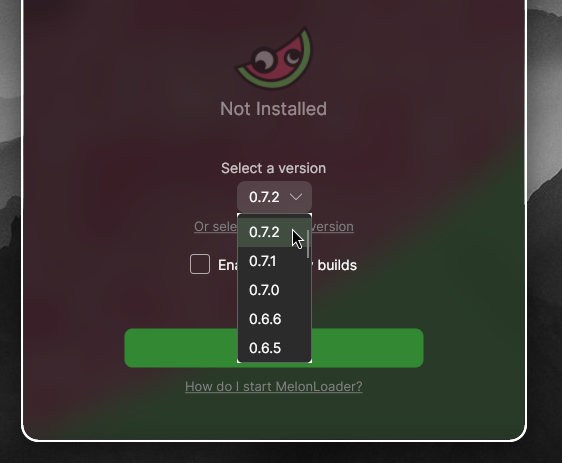
HOLD UP!
If the installation fails, report the issue to the Gorilla Tag Modding Hub Discord!
2. Download GorillaLibrary
Congratulations, you've now successfully modded Gorilla Tag!
To ensure all your mods work, you need GorillaLibrary. Go to GorillaLibrary's GitHub Releases, and download GorillaLibrary-[ver].zip
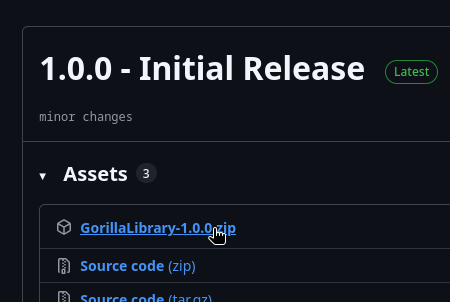
Unzip the file that you downloaded.
Next, find your Gorilla Tag folder, and copy the contents of the folder into it.
HOLD UP!
DO NOT copy the base GorillaLibrary folder into Gorilla Tag's folder. Instead, copy the contents of it (Mods/).
Finishing up
You've successfully modded your game!
To find mods to install, refer to the Gorilla Tag Mod Hub, or the Gorilla Tag GameBanana.
TIP
If you're using Linux, you need to do one more step. Refer to Linux for this.